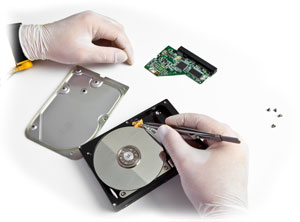
There are many different reasons why you may need to recover lost data. It could be due to hard drive failures or other technical difficulties. Whether you are just repairing a basic program which caused the loss of data or if you are trying to find data which has been lost with a third-party recovery software bundle, there are several key steps which can be followed. Step 1 Attach the failed hard drive to the functioning computer through a USB hard drive and connector. You may be required to install a wide range of drivers on your computer before proceeding to the next step, but just follow the provided prompts to handle this entire process accordingly. Step 2 Access the "My Computer" menu and search for a secondary drive which, in most cases, will be referred to as the E or F drive. This drive will allow you to view the folders and files which have been saved within the particular drive. Take the time to open the folder which has all of the files which need to be recovered and copy them by choosing the appropriate option within the menu. Repeat this process as often as necessary and feel free to complete folders at one time to handle those batches of files which are substantially large. Step 3 Click the "Start" button to access the menu along with the "Settings" which can be modified through the "Control Panel". Use the provided "Administrator Tools" to view the hard drives which have already been installed and import a foreign disk. By going directly to the "My Computer" menu and proceeding to right-click the failed drive, you will also be able to access the "Error Checking" section to fully scan the entire drive and keep things running smoothly.
 Carol Newton